
At first glance, Clip Studio Paint looks like a drawing and painting application. But underneath its familiar brushes and illustration tools is a much broader creative environment—one that combines illustration, manga and comics, vector drawing, 3D references, and 2D animation in a single application.
That combination is what makes Clip Studio Paint particularly interesting for artists who move between different stages of visual production.
Today, Clip Studio Paint can be used for everything from character design and concept art to manga, webtoons, short animations, and full-length animation projects. Its animation capabilities did not exist in their current form from day one, however. They developed gradually as Celsys expanded the software beyond its original drawing and manga-oriented roots.
So how did Clip Studio Paint get here?
From Manga Studio to Clip Studio Paint
Development of Clip Studio Paint began around 2010, and the software was released in 2012. In North America and Europe, it was initially sold under the name Manga Studio 5 before the product was later unified internationally under the Clip Studio Paint name.
Interestingly, Celsys says the original development concept was broader than any single medium. The early vision was described as a paint tool that could cross genres and support creativity across different forms of digital art.
Nevertheless, manga and comics became an important part of the application's identity. In the years following its release, Celsys continued adding features specifically designed around comic and manga production, including perspective tools, rulers and other specialized workflows.
The software was therefore strongly associated with manga and illustration—but its evolution was far from finished.
2015: Animation Enters the Picture
A major turning point came in 2015, when Celsys added an animation suite to Clip Studio Paint.
According to Celsys, developing the animation functionality was a major technical challenge. The first release received criticism, but the company continued working with artists and companies in the animation industry and incorporated their feedback into later updates.
Celsys says these subsequent improvements eventually led to Clip Studio Paint being used by animation companies.
This is an important part of Clip Studio Paint's story.
Animation was not simply added as a small export feature. It gradually became part of the application's broader creative workflow.
And rather than building animation around a completely separate environment, Clip Studio Paint approached it from the perspective of an artist who is already comfortable drawing.
Animation Built Around Drawing
The biggest attraction for traditional 2D artists is simple:
You can animate in the same environment where you draw.
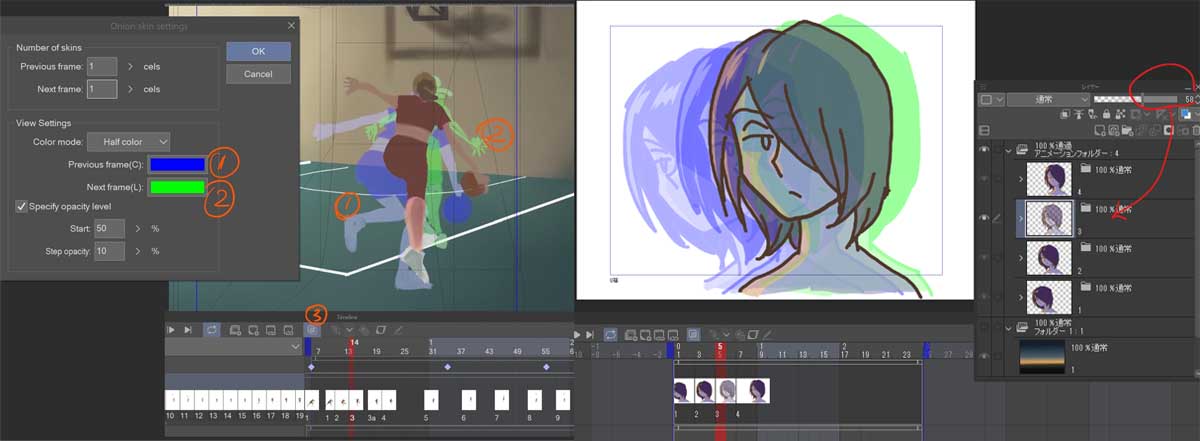
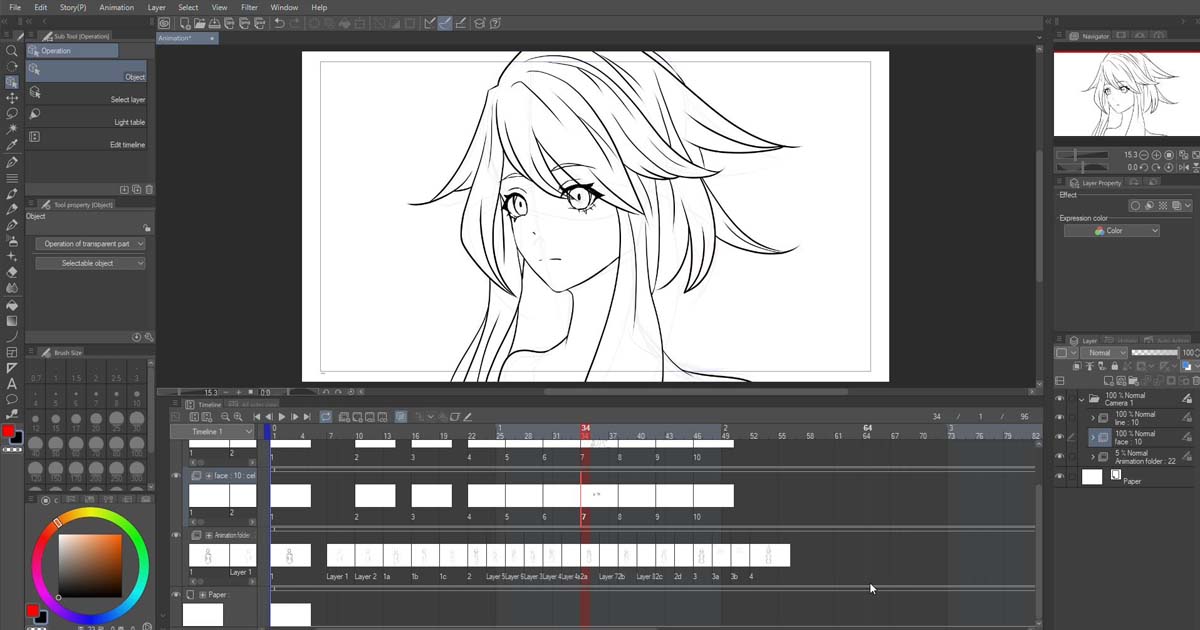
Clip Studio Paint provides an animation timeline, animation cels, onion skinning and light table functions.
The Onion Skin feature displays previous and following frames while you draw, making it easier to maintain consistent movement. The Light Table allows artists to reference selected keyframes while creating in-betweens.
The application also provides tools for checking movement frame by frame, making the experience similar to working through a digital flipbook.
This makes Clip Studio Paint particularly attractive for:
- Character animation
- Anime-style animation
- Animated illustrations
- Short films
- Motion tests
- GIFs
- Storyboards and animatics
- Web and social-media animation
Clip Studio Paint supports both frame-by-frame animation and keyframe animation, allowing artists to combine traditional hand-drawn techniques with more digital approaches.
Vector Drawing Inside a Drawing Workflow
One of Clip Studio Paint's less obvious strengths is its vector layer system.
Unlike ordinary raster strokes, vector strokes retain information about how the line was created. This allows artists to reshape strokes, modify their width and transform them while keeping the strokes editable.
The software also provides a Vector Eraser and other tools for working with vector lines.
For animation and character art, this can be extremely useful.
A line can be adjusted after it has been drawn rather than completely redrawn. Artists can refine contours, modify line weight, clean up artwork and reuse vector-based elements while maintaining editable strokes.
This is one reason Clip Studio Paint sits in an interesting space between traditional digital painting and more structured vector workflows.
3D Models as Drawing References
Another feature that dramatically expands what Clip Studio Paint can do is its integrated 3D reference system.
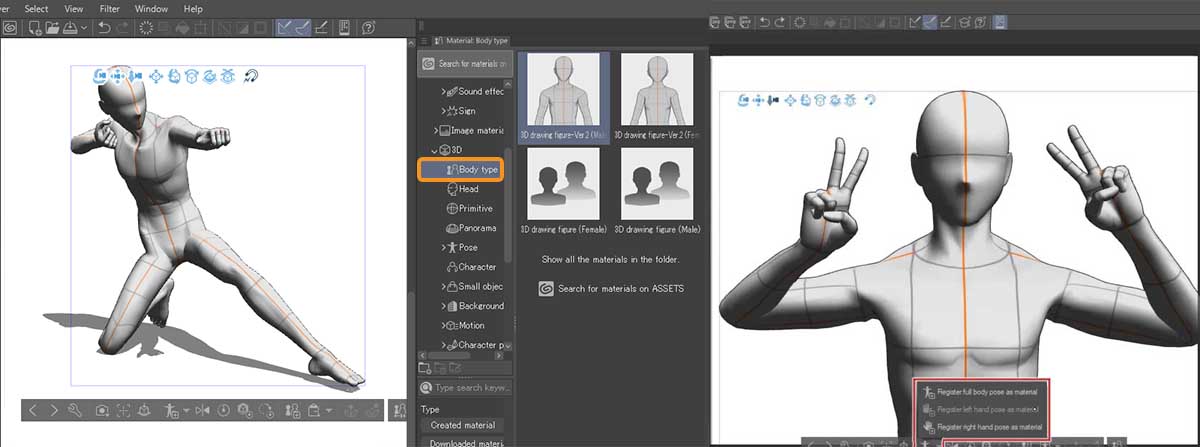
Artists can place 3D drawing figures directly on the canvas, adjust their proportions and poses, change camera angles, and use them as references while drawing.
This can be particularly useful when working on difficult perspectives or complex character poses.
Instead of searching for a suitable reference image every time, an artist can construct a rough 3D reference directly inside the application and then draw over or beside it.
The 3D system has also grown considerably over the years. Clip Studio Paint supports multiple 3D models, props, camera adjustments and pose-related tools, allowing artists to construct more complex reference scenes.
The 3D workflow becomes even more interesting with pose-scanning features.
Clip Studio Paint introduced Pose Scanner, which can use a photograph as a reference for posing a 3D drawing figure.
More recently, the software added the Hand Scanner, which can help reproduce hand poses on a 3D hand model.
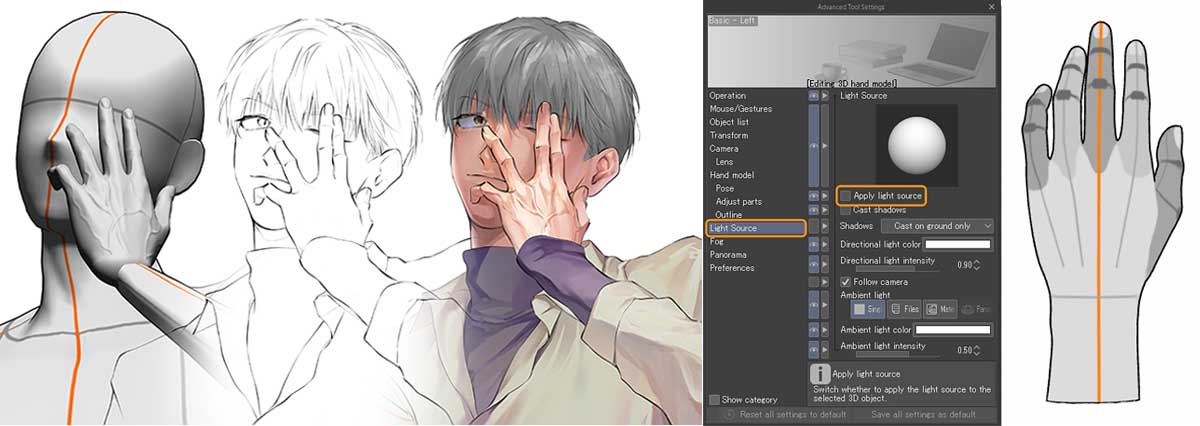
Version 5.0 also introduced detailed customizable 3D hand models that can be posed and used as drawing references.
For character artists and animators, this is particularly useful because hands are among the most difficult parts of a character to draw consistently from different angles.
3D Head Models for Character Design
Hands are not the only part of the character workflow supported by 3D.
Clip Studio Paint also provides 3D head models that can be adjusted to create references for different facial structures and viewing angles.
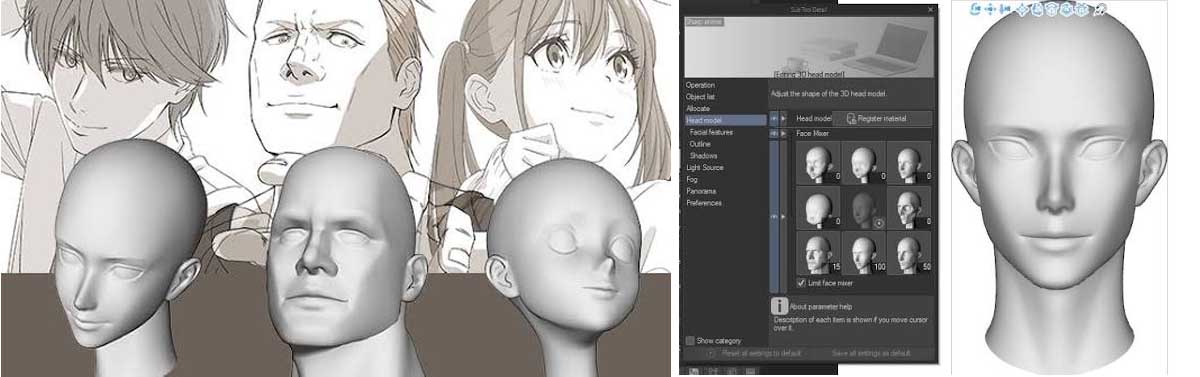
This can help when designing anime or stylized characters, especially when an artist needs to maintain consistency between front, side, three-quarter and unusual camera angles.
The concept is simple:
3D provides the structure; drawing provides the final artistic interpretation.
The goal is not necessarily to make the 3D model the final image, but to use it as a flexible reference underneath the artist's own drawing style.
Camera Work Is Part of the Animation Workflow
Clip Studio Paint also goes beyond simply placing drawings on a timeline.
Its animation tools include camera work, allowing artists to create movements such as zooms, rotations and camera effects along a curve.
The software provides keyframe options for objects and camera movement, along with interpolation options and a camera-path display.
For example, an animator can create a character shot and then add a controlled camera push-in without having to redraw every frame.
This is especially useful for anime-style productions, motion comics, animatics and scenes where camera movement contributes significantly to the final presentation.
Audio Can Be Added to the Timeline
Animation is not only about images.
Clip Studio Paint supports importing audio such as music, sound effects and dialogue, allowing creators to work with sound while editing the animation timeline.
Multiple audio tracks can be added, adjusted and mixed, and the audio can be played back alongside the animation.
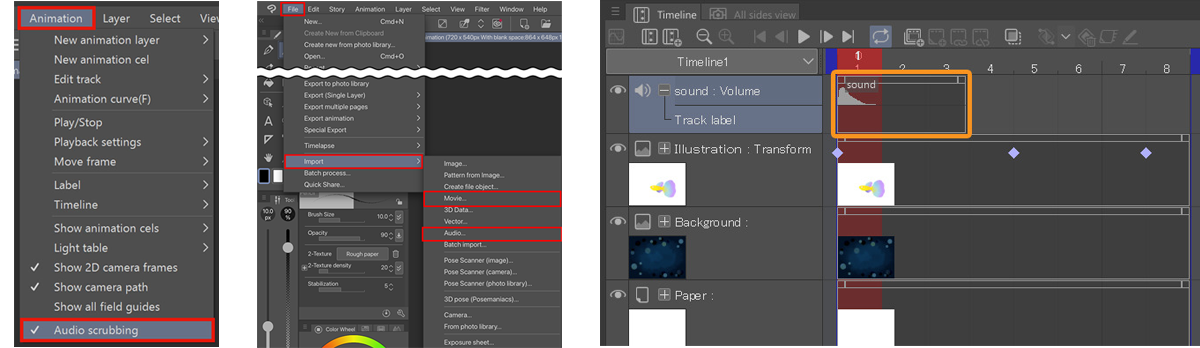
That makes the application more practical for creating complete animated sequences rather than isolated moving drawings.
An animator can therefore work with:
Drawings → Timing → Camera → Audio → Export
without necessarily leaving the application for every stage.
Puppet Warp: Change a Pose Without Redrawing Everything
Another surprisingly useful feature is Puppet Warp.
Instead of redrawing an entire character to make a small pose adjustment, artists can manipulate parts of an existing drawing as if they were moving a puppet.
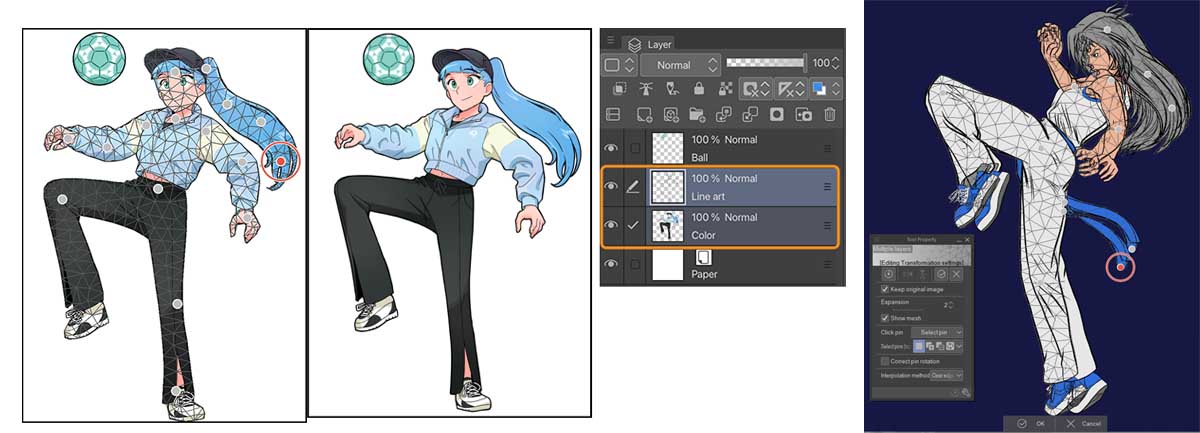
For animation and illustration, this can be useful for:
- Adjusting poses
- Creating variations
- Making small corrections
- Repositioning limbs
- Refining illustrations
- Quickly testing alternate poses
It does not replace traditional animation drawing, but it can reduce repetitive work.
Manga and Anime Tools Are Still at the Heart of the Software
Despite its expansion into animation and 3D, Clip Studio Paint has not abandoned its manga-oriented foundation.
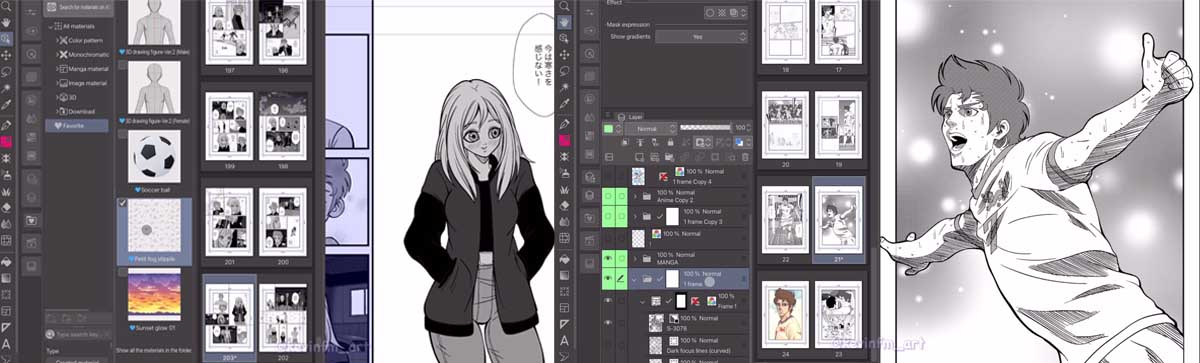
It still includes tools specifically designed for comics, manga and webtoons, including:
- Panel frames
- Speech balloons
- Text tools
- Screentones
- Effect lines
- Perspective rulers
- Symmetrical rulers
- Webtoon-oriented features
These tools are one of the reasons the application remains particularly attractive to manga and anime artists.
The important point is that these features coexist with animation and illustration tools rather than being separated into completely different applications.
An artist can design a character, draw a manga page, create a 3D reference and animate that character while remaining inside the same software ecosystem.
And It Is Not Just About Anime
Although Clip Studio Paint has strong connections to manga and anime production, its feature set extends beyond that market.
Celsys currently presents the software across several creative categories, including character art, comics, animation, concept art and design.
That makes it relevant to artists working in:
- Illustration
- Character design
- Concept art
- Comics
- Webtoons
- 2D animation
- Storyboarding
- Game art
- Visual development
- Graphic design
The common factor is drawing.
Version 5.0 Pushed the Drawing Side Further
In March 2026, Celsys released Clip Studio Paint Ver. 5.0, introducing a range of new drawing, performance and 3D improvements.
Among the highlights were Smart Shape, new 3D hand models, Hand Scanner improvements, additional 3D painting capabilities, faster rendering and faster filling.
Smart Shape
Smart Shape allows artists to create cleaner lines, curves and shapes freehand while continuing to work with their preferred pen or brush.
For an artist who spends most of the day drawing, small workflow improvements like this can make a significant difference.
Perceptual Color Mixing
Recent versions have also introduced more sophisticated color-mixing options, including perceptual color mixing designed to provide more natural-looking color combinations.
Shading Assist
Shading Assist can help artists establish lighting and shadows more quickly, providing another way to speed up the early stages of rendering.
More 3D Functionality
Version 5.0 also expanded the 3D side of the application, including new hand models and additional ways of working with 3D objects and references.
These improvements show that Celsys continues to develop the application's original strength—drawing—while expanding its capabilities in other directions.
Clip Studio Paint Is Still Evolving
It is also worth remembering that Version 5.0 is not the current endpoint of development.
Clip Studio Paint Ver. 5.1.1, released on July 31, 2026, is the current release at the time of writing.
This matters because Clip Studio Paint has historically evolved through frequent updates rather than relying only on occasional major versions. Celsys noted in its 10th-anniversary history that the application had received more than 80 updates during its first decade.
The result is a product that continues to evolve rather than remaining tied to the feature set of its original 2012 release.
From Simple Animation to a Drawing-Centered Production Workflow
One of the most interesting things about Clip Studio Paint is how many different stages of a visual project can exist inside the same application.
A possible workflow could look something like this:
Character Design
↓
3D Pose Reference
↓
Sketch
↓
Vector or Raster Line Art
↓
Color and Shading
↓
Frame-by-Frame Animation
↓
Camera Movement
↓
Audio
↓
Export
The individual tools are not necessarily unique by themselves. Other applications can provide stronger specialized solutions for particular tasks.
What makes Clip Studio Paint unusual is how many of these capabilities are connected inside one drawing-focused environment.
PRO or EX?
Clip Studio Paint currently comes in two major grades: PRO and EX.
PRO is aimed primarily at professional illustration, character art, concept art and related drawing workflows. It also includes simple animation and supports movie creation of up to 24 frames.
EX includes the PRO features while adding more advanced comic and animation capabilities, including tools intended for full-length animation.
For someone primarily interested in illustration and occasional short animations, PRO may be enough.
For artists who want animation to become a serious part of their workflow, EX is the more relevant version.
Is Clip Studio Paint Really Used in Professional Production?
There is a distinction worth making here.
Clip Studio Paint should not be described as a universal replacement for specialized animation packages such as Toon Boom Harmony or TVPaint. Those applications are designed around dedicated animation production workflows and have their own strengths.
However, it would also be inaccurate to describe Clip Studio Paint as merely a hobby drawing application.
Celsys says Clip Studio Paint is used by 2D animation studios worldwide, and its official education materials include examples involving professional artists and animation organizations.
One concrete example is Yoyogi Animation Academy, where Celsys says 500 Clip Studio Paint licenses are used across its animation, illustration and manga departments.
These examples do not mean that every animation production uses Clip Studio Paint as its primary software. They do show, however, that the application has a genuine place in professional and educational animation workflows.
The Bigger Story: Clip Studio Paint Became a Bridge
Perhaps the most interesting part of Clip Studio Paint's evolution is not any individual feature.
It is the way the software gradually became a bridge between different forms of digital creation.
It started with a strong focus on drawing and manga-oriented production. Over time, Celsys added animation, vector workflows, 3D references, camera tools, audio, webtoon features, improved color tools and increasingly sophisticated 3D functionality.
The result is an application that can sit somewhere between several traditionally separate categories:
Illustration + Manga + Vector + 3D Reference + 2D Animation
That combination is probably the real reason Clip Studio Paint has become so interesting to artists.
Clip Studio Paint's Evolution at a Glance
| Year | Major Development |
|---|---|
| 2010 | Development of Clip Studio Paint begins |
| 2012 | Clip Studio Paint launches; marketed as Manga Studio in North America and Europe |
| 2013 | Manga Perspective and further comic-oriented tools added |
| 2015 | Animation Suite introduced |
| 2016 | Clip Studio ASSETS expands globally |
| 2017 | iPad version released |
| 2019 | iPhone version released |
| 2020 | Expanded to Galaxy, Android and Chromebook devices |
| 2021 | Celsys reports 15 million users |
| 2022 | Celsys reports 25 million users and marks the 10th anniversary |
| 2026 | Version 5.0 introduces Smart Shape, 3D hand models and other improvements |
| 2026 | Version 5.1.1 becomes the current release |
Why Clip Studio Paint Stands Out
Clip Studio Paint is not necessarily the best application for every single stage of professional animation production.
Its appeal is different.
It gives an artist a surprisingly broad collection of tools without abandoning the feeling of actually drawing.
You can sketch a character, adjust its pose using a 3D model, refine the line art as vectors, paint the final artwork, turn the drawings into animation cels, check the movement with onion skin, add camera movement and sound, and export the result—all within the same creative environment.
That is a powerful proposition, particularly for artists who do not want their workflow divided between several specialized applications.
And perhaps that is the most interesting part of Clip Studio Paint's evolution.
It did not become an animation application by leaving drawing behind.
It became an animation application by building more and more creative tools around drawing.
Today, that philosophy remains at the center of Clip Studio Paint—and it is what makes the software particularly compelling for artists working across illustration, manga, character design and 2D animation.
 References & Further Reading

Sadjad Jahangiri 




Add comment