

When you convert the color profile of images and textures to ACES in any graphics software, significant changes occur in their structure. In this article, we’re going to explore exactly what happens during this process. As mentioned earlier, ACES is a standardized color system designed specifically for cinematic and digital production. Its main purpose is to preserve accurate color and luminance throughout the entire production pipeline from acquisition to final output.
This color profile offers a wider color gamut and higher color precision compared to older color spaces like sRGB or AdobeRGB. Before diving into the changes that occur when converting textures and images to ACES, let’s first clarify the technical differences between a “texture” and an “image” in the world of CG, so we can better understand how ACES affects them.
Images vs Textures in CG
In computer graphics, “images” and “textures” are two distinct concepts used in creating and presenting visual effects. Here are the key differences:
Image:
-
Generally refers to any visual content, such as a photograph, digital painting, or other digitally created artwork.
-
Images can contain extensive visual details, including colors, lighting, shadows, and more.
-
They are often used as inputs for simulations, compositing, or display purposes.
-
Images may serve various functions like backgrounds, 2D graphics, or even maps for 3D models, but they typically do not have inherent spatial or 3D properties.
Texture:
-
A specialized type of image applied to the surface of a 3D model in computer graphics.
-
Textures can store various types of data, including color, bump/depth (Bump Map), reflections (Specular Map), or transparency (Opacity Map).
-
Textures enhance 3D models with realistic surface details such as wear, roughness, or other physical attributes.
-
They are primarily used in 3D environments like games, animations, or simulations to give models a more lifelike appearance and add depth, color, and physical characteristics.
In short, while images are broader and can serve multiple purposes in digital content creation, textures are specifically tailored to augment 3D models with realistic surface detail.
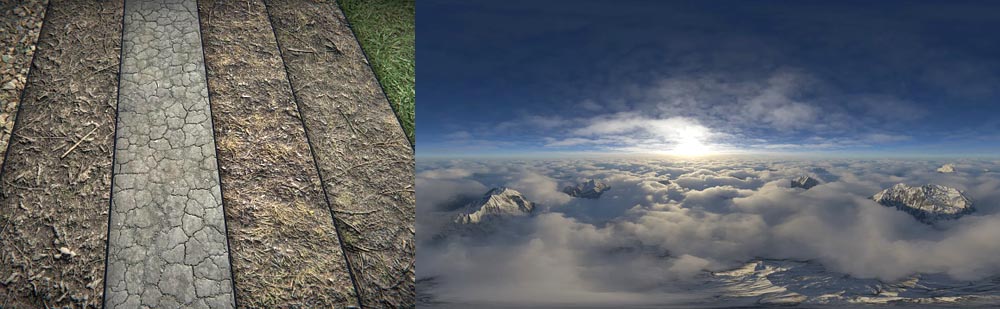
Structural Differences: Images vs. Textures
Image:
-
An image can contain all kinds of visual details but represents only a 2D plane of information.
-
Images may be high-resolution and stored as standalone files in formats like JPG, PNG, TIFF, and others.
Texture:
-
A texture is usually applied to a 2D mapped surface (UV map) on a 3D model.
-
These maps can include various types of information, such as surface color, lighting curves, roughness or smoothness, and other physical attributes.
More technical nature of textures:
Textures can carry specialized data that directly affects the appearance of a 3D model, such as:
-
Diffuse Map: the base color of the surface.
-
Bump Map / Normal Map: simulates surface roughness or depth.
-
Specular Map: controls shininess and reflectivity.
-
Opacity Map: manages transparency.
While an image generally represents colors and visual detail on a flat 2D surface, a texture is specifically designed to add surface detail and physical characteristics to 3D models. In short, an image is a versatile visual file that can be used in many contexts, whereas a texture is an image intended primarily to enhance the realism of 3D surfaces.
What ACES Does to Converted Images and Textures
Expanded Color Gamut:
ACES typically offers a much wider color gamut compared to other color profiles like sRGB. This means that your textures may now contain colors that were previously outside the displayable range. The result is richer and more accurate color representation.
Brightness Management (Tone Mapping):
When converting to ACES, brightness information may be adjusted. Especially for textures with high dynamic range (HDR) values, ACES preserves these luminance levels more accurately. ACES is optimized for HDR workflows, so these types of data can be stored and processed more reliably.
Linear Color Space:
In ACES, data is stored in a linear color space. This means your textures are automatically converted from gamma-encoded spaces (like sRGB, which is nonlinear) to linear space. This conversion allows graphics processes like lighting and shading to be calculated more accurately, leading to more realistic results in renders and simulations.

Impact on Lighting and Shading
Because ACES uses a linear color space and a wider color gamut, lighting and shading calculations in software that supports this profile become more accurate. This means that your textures can yield more realistic and precise results when applied to 3D scenes and during rendering.
Interaction with Other Sources and Textures:
If your project uses multiple textures or assets that are not in ACES, you may need to perform color grading or color profile adjustments to maintain color consistency across the entire scene. Converting textures to ACES ultimately places them in a more advanced and precise color space, which is especially beneficial for professional productions and complex renders, particularly when using sophisticated lighting setups or HDR workflows.
Converting Low-Quality Textures to ACES
Converting a low-resolution or low-quality texture to ACES does not inherently improve its visual quality. The ACES conversion primarily affects how color and luminance data are stored and processed, not the intrinsic details of the image. In other words, switching to ACES changes the way colors are interpreted and handled but does not add new information or details to the texture.
However, using the ACES color profile can sometimes produce better rendering results under certain conditions:
-
Wider Color Gamut: ACES has a much broader color range than older profiles like sRGB. If your texture contains vivid colors or fine details in bright or dark regions, ACES can preserve this information more accurately. This benefit depends on the texture having at least some quality detail to begin with.
-
Linear Processing: ACES stores data in linear space, which is particularly useful for lighting and compositing, as many rendering and graphics operations are linear. That said, if your texture is low-quality, merely converting to ACES will not magically improve its details adequate original information is required.
-
Color and Detail Redistribution: In some software, converting to ACES can improve the visual appearance of a texture in complex lighting or HDR scenarios. This helps to display certain details that may have been lost in more limited color spaces. However, if the texture lacks sufficient information (e.g., noisy, low resolution, or washed-out colors), the conversion alone cannot fix these quality issues.
-
Post-Processing Techniques: After converting to ACES, techniques like tone mapping and color grading can be applied to enhance the overall appearance. These adjustments make better use of the wider and more precise color space, but the underlying texture quality remains limited by the original data.
Conclusion: Converting a low-quality texture to ACES is mainly useful for more accurate color processing and rendering, but it does not inherently improve the texture’s real resolution or detail. To genuinely enhance quality, high-resolution sources or additional image improvement methods such as upscaling or denoising are required.
Maintaining Texture and Image Quality with ACES in Software Workflows
When using the ACES (Academy Color Encoding System) color profile in a project, you are essentially relying on a standardized, advanced system for managing color and color spaces. ACES is specifically designed for the film and video industry, ensuring that color fidelity is preserved from the earliest stages of production such as capture and compositing through to the final output.
Here are the main reasons why ACES helps maintain color quality across different software platforms:
Wider Color Gamut and High Dynamic Range:
ACES provides a very wide color gamut and high dynamic range, meaning that every color and brightness detail in an image can be stored and processed more accurately. This extended color space allows software to manage colors and details with higher precision, preventing quality loss.
Accurate Color Management and Inter-Space Compatibility:
Through precise color transforms, ACES enables seamless conversion between different color spaces without losing details. Using ACES ensures that all color conversions are handled automatically and correctly, preserving image fidelity throughout the workflow.
Industry-Standard Compatibility:
ACES is designed to be fully compatible with the professional film and video industry. It adheres to global standards, ensuring that color quality is maintained at every stage of production, from capture and processing to editing and final output.
Precision Processing in Professional Software:
Advanced graphics and post-production software such as Nuke, DaVinci Resolve, and Autodesk Flame fully support ACES. These applications use specialized algorithms to perform color and lighting operations accurately within the ACES color space, ensuring that color fidelity and detail remain intact even through complex workflows.
Display-Agnostic Color:
A major advantage of ACES is that it is display-independent. This means that colors are consistently reproduced across different devices monitors, projectors, or other output hardware even if they use different color profiles. ACES ensures that color and brightness are correctly translated from the production stage to the final display.
Linear Workflow:
ACES profiles typically operate in a linear color space, meaning that all color computations are performed linearly and precisely. This prevents unexpected shifts or color distortions during editing, compositing, or post-production.
Support for Textures and Complex Materials:
ACES is not only for surface colors it also supports textures, materials, and complex imagery that require high-precision storage and processing. This is particularly important for high-detail textures and materials used in films, animations, or video games.
Conclusion:
Using the ACES color profile in graphic and post-production software ensures that color quality is preserved throughout the entire workflow. Its wide color gamut, precise color management, and support for linear processing allow ACES to maintain fidelity from initial creation to final output, even in complex scenes or high-dynamic-range environments.

Why Texture File Size Increases After Converting to ACES
When textures are converted to the ACES color system, it’s common to notice that their file size increases. This happens for several key reasons:
1. Higher Bit Depth:
One of the main reasons for larger texture files after conversion to ACES is an increase in color bit depth. In standard color systems, textures might be stored at lower bit depths (such as 8-bit or 16-bit). ACES, however, typically uses higher-precision color storage (16-bit or 32-bit). This means that each pixel contains more data. For example, ACES often uses formats like Half Float or Full Float, which provide greater precision and detail, but also result in larger file sizes.
2. Wider Color Gamut:
ACES supports a much wider color gamut than standard profiles like sRGB or Rec. 709. A wider gamut requires more data to represent colors accurately. Textures originally stored in limited color spaces may require additional information when converted to ACES to cover the broader spectrum of colors, which naturally increases file size.
3. Linear Workflow:
ACES works in a linear color space, whereas non-linear spaces like sRGB store colors in a gamma-corrected format that typically uses less data. Linear processing in ACES demands more precise color information, especially in areas with highlights, shadows, or complex lighting simulations. This higher level of detail and precision in storing and processing each color channel contributes to the larger texture size.
Summary:
Converting textures to ACES increases file size primarily due to higher bit depth, a wider color gamut, and linear color processing. While this may result in larger files, it also ensures that your textures maintain maximum color fidelity and precision, especially in professional workflows involving HDR, complex lighting, or high-end rendering.
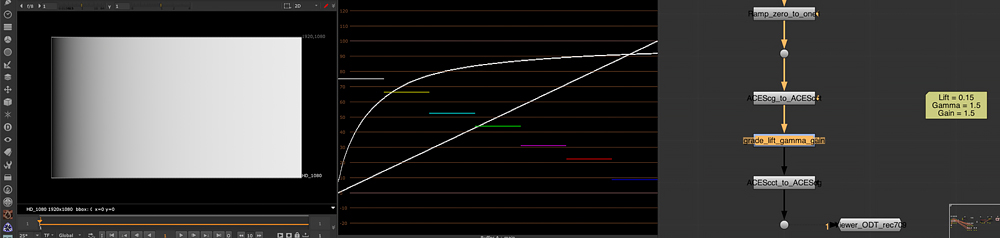
Why Textures Increase in Size When Converted to ACES
Use of RAW or Float Formats:
ACES often relies on higher-precision formats such as half-float or full-float, which store 16-bit or 32-bit per color channel. These formats provide much more detail than standard 8-bit or 16-bit textures, so converting a texture to 16-bit or 32-bit can significantly increase its file size.
More Detailed Color and Light Data:
ACES is designed to preserve more accurate information about color, brightness, and lighting. It retains precise luminance and color values that might otherwise be compressed or reduced in other color systems. This extra level of detail naturally requires more storage space.
HDR and Dynamic Range Support:
ACES fully supports High Dynamic Range (HDR), which requires higher precision to accurately store a wide range of brightness and shadow values. Textures converted to ACES must carry this additional data, which increases their size compared to traditional HDR or standard formats.
Summary:
When a texture is converted to ACES, several factors contribute to larger file sizes: higher bit depth, a wider color gamut, more precise float formats, and linear processing. While this increases storage requirements, it also ensures that textures are stored with higher accuracy and better quality, making them ideal for professional workflows in film, VFX, and high-end 3D rendering.
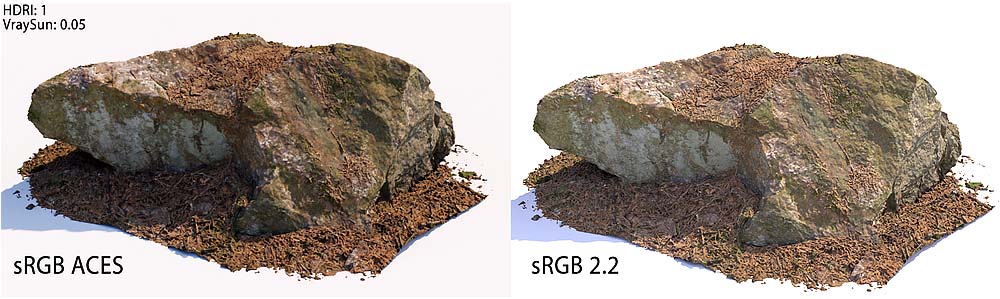
Situations Where Converting to ACES Doesn’t Increase Texture Size
In some cases, converting a texture to the ACES color space may not affect its file size at all—or might even reduce it depending on specific conditions and conversion settings. Here are the main scenarios where this can happen:
Use of Compressed Formats:
If textures are stored in compressed formats like JPEG, PNG, DDS, or KTX, simply converting the colors to ACES may not significantly change the file size. This is because compression primarily affects the raw color data (like sRGB or HDR values), and the ACES conversion may occur in the background without substantially altering the stored data.
Compression During ACES Conversion:
If you apply compression when saving ACES textures, the final file size can actually decrease. For example, using compressed formats such as DDS with BC7 or KTX with ETC2 for ACES textures can reduce file size, as these formats are optimized to store color data efficiently.
Choosing an Appropriate Bit Depth:
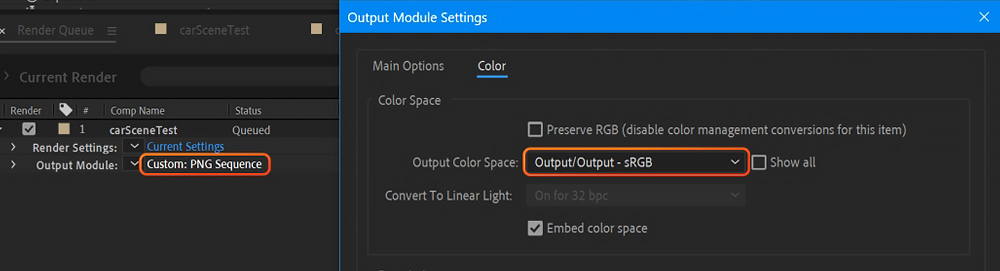
If the bit depth remains the same during conversion (for instance, an 8-bit texture converted to ACES with 8 or 16 bits), the file size may stay almost unchanged. In this case, ACES is used mainly to place the texture in a more suitable color space without significantly affecting storage requirements.
Limited Color Variation:
Textures with simple color schemes or low contrast may see little to no change in size when converted to ACES. Since the original RGB data can already be stored efficiently, ACES conversion alone doesn’t introduce enough new data to increase file size.
RAW or HDR Formats with Appropriate Compression:
For textures originally stored as uncompressed RAW or HDR (like 32-bit EXR or TIFF), conversion to ACES can increase file size. However, if these textures are saved in a compressed ACES-friendly format, the file size change may be minimal or even negligible.
Minor Changes in Color Encoding:
Converting from another color space (like sRGB or Rec. 709) to ACES may introduce slight adjustments in color encoding. If ACES is saved at a lower bit depth (e.g., 16-bit), the resulting file size might only change slightly.
Summary:
In short, ACES conversion doesn’t automatically increase texture size. Factors such as compression, bit depth, color variation, and the original file format play a crucial role in determining whether the texture grows, shrinks, or stays roughly the same.
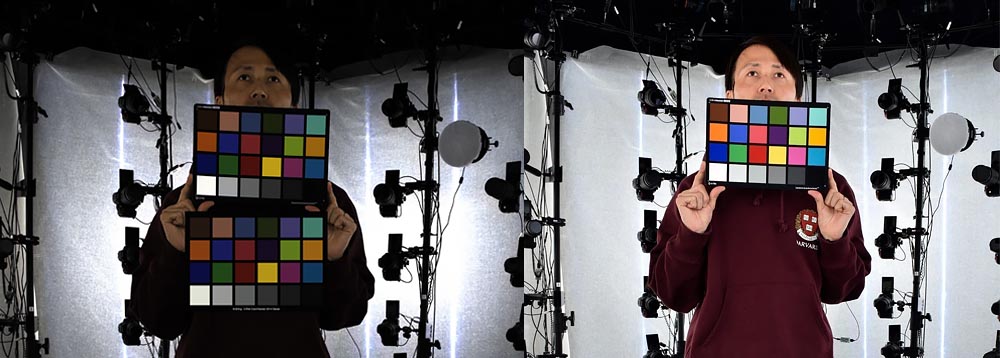
Using Specialized ACES Compression Methods and Dynamic Range Considerations
Special ACES Compression Methods:
Some image and video editing software offer ACES-specific compression techniques for example, ACES Proxy or proprietary ACES formats that can help reduce the file size of converted textures. When these methods are applied during conversion, the resulting texture may remain roughly the same size or even decrease in size.
Using Lower Dynamic Range (LDR) Instead of HDR:
If a texture is designed for low dynamic range (LDR) but is improperly converted to ACES, its file size can increase more than expected. However, when correctly converted to ACES with the appropriate dynamic range and proper compression, the texture size may remain largely unchanged.
Summary:
The effect of converting a texture to ACES on its file size depends heavily on the specific texture and the conversion settings. Using compressed formats or keeping a lower bit depth can minimize size changes, whereas adding higher bit depth and extra details in ACES can increase texture size. By choosing appropriate compression methods and optimized formats, you can effectively control any changes in file size during the conversion process.

Sadjad Jahangiri
![Verified]()